6/8/11

cheap fast screen saver looking "under construction"

if a view isn't ready for "prime time" poking around but people still would like to have a peek - usually it's just easy to throw a transparent rectangle to make it a "read only" view. So, I was just bored and added a screen saver like animation to it. All it is, is a textbox "Under Construction" floating through the screen rotating. Totally half baked but made my QA/Product laugh.

   1:  <Canvas Background="#0C100F0F" x:Name="canvas" Margin="0,0,50,0">
   2:    <Canvas.Triggers>
   3:      <EventTrigger RoutedEvent="TextBlock.Loaded" SourceName="txt">
   4:        <EventTrigger.Actions>
   5:          <BeginStoryboard>
   6:            <Storyboard>
   7:              <DoubleAnimation Storyboard.TargetName="txt" 
   8:                           Storyboard.TargetProperty="(TextBlock.RenderTransform).(RotateTransform.Angle)"
   9:                                                   From="0" To="360" Duration="0:0:50" RepeatBehavior="Forever"/>
  10:                          <DoubleAnimation Storyboard.TargetName="txt" 
  11:                                                   Storyboard.TargetProperty="(Canvas.Left)" 
  12:                                                   From="-25" To="900" Duration="0:0:50" RepeatBehavior="Forever" />
  13:                          <DoubleAnimation Storyboard.TargetName="txt" 
  14:                                                   Storyboard.TargetProperty="(Canvas.Top)" 
  15:                                                   From="-25" To="1250" Duration="0:0:50" RepeatBehavior="Forever" />
  16:            </Storyboard>
  17:          </BeginStoryboard>
  18:              </EventTrigger.Actions>
  19:        </EventTrigger>
  20:    </Canvas.Triggers>
  21:      <TextBlock Name="txt" Text="under construction" Margin="50" Canvas.Left="550" Canvas.Top="450" 
  22:                            FontSize="75" Foreground="Black" Opacity="0.5" Cursor="Hand">
  23:        <TextBlock.RenderTransform>
  24:        <RotateTransform Angle="0" CenterX="75" CenterY="25" />
  25:          </TextBlock.RenderTransform>
  26:      </TextBlock>
  27:  </Canvas>

putting this canvas in a grid or whatever parent should do the trick. oh, adding some special key combination to unlock the view so that qa can test (and making them struggle to find what it is) can make a Friday after 3 p.m. lonely afternoon with tumbleweeds rolling through abandoned cubicals more exciting.
To make rotations cooler, I should add dependency properties in the back .cs that would bind to Canvas' Left.From, Left.To, Right.From, etc... and make sure they are generating new values. So that the rotation is random. But that's for the next boring afternoon.

5/31/11

Find Visual Parent & Child

Tired of writing these two methods over and over, from now on just going to Copy/Paste them from here :)


   1:   
   2:          static T FindVisualParent<T>(UIElement element) where T : UIElement
   3:          {
   4:              var parent = element;
   5:              while (parent != null)
   6:              {
   7:                  T correctlyTyped = parent as T;
   8:   
   9:                  if (correctlyTyped != null)
  10:                      return correctlyTyped;
  11:   
  12:                  parent = VisualTreeHelper.GetParent(parent) as UIElement;
  13:              }
  14:              return null;
  15:          }
  16:   
  17:          static T FindVisualChild<T>(Visual parent) where T : Visual
  18:          {
  19:              T child = default(T);
  20:              int numVisuals = VisualTreeHelper.GetChildrenCount(parent);
  21:              for (int i = 0; i < numVisuals; i++)
  22:              {
  23:                  var visual = (Visual)VisualTreeHelper.GetChild(parent, i);
  24:   
  25:                  child = visual as T;
  26:                  if (child == null)
  27:                      child = FindVisualChild<T>(visual);
  28:   
  29:                  if (child != null)
  30:                      break;
  31:   
  32:              }
  33:              return child;
  34:          }
  35:      }
  36:      
  37:      //call samples:
  38:      var dataGrid = FindVisualParent<DataGrid>(cell);
  39:      var row = FindVisualParent<DataGridRow>(cell);
  40:      var textBox = FindVisualChild<TextBox>(e.EditingElement);

12/14/10

Debugging XAML Binding

Good tip of the day:

To debug XAML Binding you can add reference to Diagnostics from WindowsBase dll to the XAML file, 
then when binding to some property add PresentationTraceSources.TraceLevel. When you run it check out 
the output window.


<TextBlock Text="{Binding someProperty, diagnostics:PresentationTraceSources.TraceLevel=High}"/>


9/16/10

Binding multiple properties to one XAML element using WPF MultiBinding

 <ListView.View>
   <GridView>
     <GridViewColumn Header="Address">
       <GridViewColumn.CellTemplate>
         <DataTemplate>
           <TextBlock>
             <TextBlock.Text>
               <MultiBinding StringFormat="{}{0}, {1}">
                 <Binding Path="Address.City"/>
                 <Binding Path="Address.State"/>
               </MultiBinding>
             </TextBlock.Text>
           </TextBlock>
         </DataTemplate>
       </GridViewColumn.CellTemplate>
     </GridViewColumn>
     ...
     ...
     ...

9/13/10

ListView SelectedItem color and Alternate row background

Lots of examples on how to change ListView SelectedItem color will overwrite the System.Colors.HighlightBrushKey and SystemColors.ControlBrushKey:
<Style x:Key="myListboxStyle">
    <Style.Resources>
        <!-- Background of selected item when focussed -->
        <SolidColorBrush x:Key="{x:Static SystemColors.HighlightBrushKey}" Color="Red" />                
        <!-- Background of selected item when not focussed -->
        <SolidColorBrush x:Key="{x:Static SystemColors.ControlBrushKey}" Color="Green" />
    </Style.Resources>
</Style>
You can argue whether that's elegant or not, I just didn't want to do that, so below is a slightly different aproach: I create my own element (Border in this case) and change it's color. Also jammed into here alternate background triggers.
<ListView ItemContainerStyle="{StaticResource ListViewItemStyle}"
          AlternationCount="2" />

<Style x:Key="ListViewItemStyle" TargetType="ListViewItem">
  <Setter Property="Template">
    <Setter.Value>
      <ControlTemplate TargetType="ListBoxItem">
        <Border x:Name="Border" SnapsToDevicePixels="true">
          <GridViewRowPresenter VerticalAlignment="Stretch" HorizontalAlignment="Stretch"/>
        </Border>
        <ControlTemplate.Triggers>
        
          <Trigger Property="IsSelected" Value="true">
            <Setter TargetName="Border" Property="Background" Value="Blue"/>
          </Trigger>
          
          <MultiTrigger>
            <MultiTrigger.Conditions>
              <Condition Property="IsSelected" Value="false"/>
              <Condition Property="ItemsControl.AlternationIndex" Value="1"/>
            </MultiTrigger.Conditions>
            <Setter TargetName="Border" Property="Background" Value="WhiteSmoke"/>
          </MultiTrigger>
    
      <MultiTrigger>
        <MultiTrigger.Conditions>
          <Condition Property="IsSelected" Value="false"/>
          <Condition Property="ItemsControl.AlternationIndex" Value="2"/>
        </MultiTrigger.Conditions>
        <Setter TargetName="Border" Property="Background" Value="White"/>
      </MultiTrigger>
    
    </ControlTemplate.Triggers>
     </ControlTemplate>
   </Setter.Value>
  </Setter>
</Style>

MSDN shows example:

<Trigger Property="ItemsControl.AlternationIndex" Value="1">
  <Setter Property="Background" Value="WhiteSmoke"></Setter>
</Trigger>
<Trigger Property="ItemsControl.AlternationIndex" Value="2">
  <Setter Property="Background" Value="White"></Setter>
</Trigger>

Which will not work for my trigger (since I am using a Border the ControlTemplate). So instead of operating directly on ItemControl.AlternationIndex, I change the background of a different element - Border.


7/16/10

good old quote

I was looking through my grammars book by Daniel I.A.Cohem "Introduction to Computer Theory". Chapter 16 goes into depth on Pushdown Automata Theory with Chomsky Normal Form.

Theorem 21
If L is a context-free language generated by a Context -free Grammar that includes A-productions, then there is a different context=free grammar that has no A-productions that generates either the whole language L or else generates the language of all the words in L that are not A.

If you never took grammars and after reading this were like what the..? A few pages later in the end of the proof, the author throws this great metaphor to help you understand the rules. I read it again and couldn't help laughing ...and enjoying:

Those never born need never die. 
First statistician: 
" With all the trouble in this world, it would be better if we were never born in the first place."
Second statistician:
"Yes, but how many are so lucky? Maybe one in ten thousand."

7/13/10

WPF listbox.SelectedItems.Add doesn't select the items?

D'oh, I guess it's binding or ref 101, make sure you iterate through correct items list, which in this case - the bound items.

lets pretend to bind the listBox to some list of states:

listBox.ItemSource = somelistOfStates;

at some point you need to select some states programmatically that come from some other list of states (you get it from some event, for example):
foreach(var state in _statesIWantToSelect)
     listBox.SelectedItems.Add (state);

Looks right, but doesn't work (does not select the states in the listBox).
Well, the reason why is that SeletedItems list does not find the state you want it to select in its list.You have to find the corresponding listbox item first then operate on that item not on some other object that doesn't have the same reference:
 
foreach(var state in _statesIWantToSelect)
    foreach(var item in listBox.Items)
        if(((State)item == state)
            listBox.SelectedItems.Add(item)


12/1/09

getting started with Silverlight consuming ADO.NET Data Service


Start new Silverlight project (I am using Silverlight 3 here)


Give it a name, click OK. 
Then “New Silverlight Application” host comes up. 

Click OK. This will create SilverlightApplication and SilverlightApplication.Web projects in your solution.

Add Add ADO.NET Entity Data Model to your SilverlightApplication.Web project


Entry Data Model Wizard will show, select Generate from Database, choose or create your database connection, your database objects. 


Note your entities name, you'll use it later in when adding it to the WebDataService as your data service type (I named mine MyDbEntities)
 

Add WebDataService to your SilverlightApplication.Web


In WebDataService.svc.cs add your Entity

public class WebDataService : DataService< /* TODO: put your data source class name here */ > 
public class  WebDataService :  DataService<MYDBEntities >
also in the same file there config rights, for now to get things going I’d put “*” in both…

config.SetEntitySetAccessRule("*", EntitySetRights.AllRead);
config.SetServiceOperationAccessRule("*", ServiceOperationRights.All);
Build the SilverlightApplication.Web (so that you can reference the service in your SilverlightApplication project)

Add a Service Reference to SilverlightApplication project (click Discover if need to)
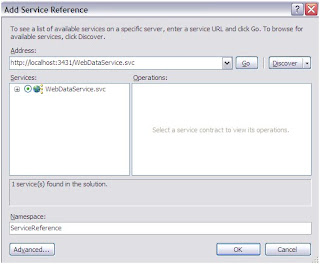


Finally, done with the setup. Lets add little code:

In SilverlightApplication project, the MainPage.xaml the page already has a Grid x:Name=”LayoutRoot”
Add a grid to it:

<data:DataGrid x:Name="dataGrid"/>

In MainPAge.xaml.cs:
Create a private field "entities", instanciate it, query, then set the dataGrid.ItemSource to what you got back…

Notes about the code below:

1. entities = new MYDBEntities(new Uri("http://localhost:3431/WebDataService.svc", UriKind.RelativeOrAbsolute));
if not sure about the Uri, then right-click on WebDataService.svc > View in Browser, to copy the link …also the port number is just a random port being assigned. If you add your service to IIS, then you can use relative url.

2. if IntelliSence doesn’t come up, or you're not sure what the name of your entities are (mine is MYDBEntities), open Model.Designer.cs and look for a class that derives from ObjectContext.

3. var query = entities.users; //users is just a table in my db… user yours
Here's the code...


public partial class MainPage
    {
        private MYDBEntities entities;
        public MainPage()
        {   

           InitializeComponent();
           entities = new MYDBEntities(

                        new Uri("http://localhost:3431/WebDataService.svc", 
                        UriKind.RelativeOrAbsolute));
           var query = entities.users;
           try
           {
              query.BeginExecute(c => 

              { 
                dataGrid.ItemsSource = query.EndExecute(c).ToList();
              }, query);
           }
           catch (Exception exception)

           {
              MessageBox.Show(exception.ToString());
           }
        }
    }


that's it, run it, and you should see some data in the grid.


8/28/09

Sustainable Mopping

got to work on Friday morning, this is what I get in my I.M.

(BTW - my dad doesn't speak English)


[10:08:32 AM] : your dad is washing our plywood floors with toilet water!!!!!!

[10:08:37 AM] : he put the mop in the toilet

[10:08:51 AM] : and then used it to mop the plywood floors

[10:11:04 AM] : i told him NO!!!

[10:11:37 AM] : asked him how it's clean

[10:11:45 AM] : then he lied and said it was the 1st time he did it

[10:12:01 AM] : and i was suspicious

[10:12:21 AM] : why would he be taking the mop into the bathroom and flushing the toilet

[10:12:24 AM] : then i saw him do it

[10:12:45 AM] : that was the 2nd time

[10:12:51 AM] : and i yelled at him 'no'

[10:13:05 AM] : he's now washing our plywood floors with water and vinegar

[10:13:07 AM] : same mop

[10:13:11 AM] : sorry to bother you about that

[10:13:21 AM] : i just cant believe it


8/21/09

Nothing to be ashamed off...

Yesterday going back home on the train I had time to reflect for a couple of minutes until someone stepped on my foot.

This summer presented me with this amazing opportunity to work on myself. Something in me grasps it. Something embraces it. And, of course, there is another part. The old story begins - that part does not want to go through the turmoil. But not that it doesn’t want it a 100%. It’s just that this part is tired and needs to be re-energized a bit. Once it gets a little breather, it’s becomes less disinterested.

But there is no breather. And this is what is great about this summer. It shattering a naïve outlook I had about myself. About my abilities to work. About my accomplishments in these years efforts. Accomplishments? What’s that? Everything still happens with me. Efforts? What efforts? One effort that I would attempt against one little push of a button?

I learnt to play checkers and make a good move once in a while. What happens when the game changes to chess? Where are the previous simple efforts - the ones that can help me? Can they? If they can’t, then I was going in a completely wrong direction and have to start from the very beginning. I would like to think that I was working in the right direction. But how little! And, again, how naïvely!

I was thinking about all this last night, while my father was trying pair after pair of jeans in the “XXX store”. Right in there by the shelves where jeans were displayed. Replying to my suggestion to use the fitting room with “Nothing to be ashamed off, I am wearing my brand new trousers”.

motivation

Been working on this bug for two and a half days. Feeling pretty dumb and down. Got an email from one of the guys who hired me for my first dev position. He writes:

-I’ll let you in on a secret.. It wasn’t about if you got the answers right or wrong….. anyone can learn that shit. It’s about showing passion, desire and willingness to try. That’s what makes a good developer. Don’t ever lose those qualities.

I gotta remember this more often. Why am I in it? I just wanted to code. That's all. ...going back to that bug.

1/22/09

XAML - Binding to complex types

Lets say you you have a User object with properties that return simple built-in types:
string Name, bool IsActive ...etc.

If you bind the controls parent to User, then with simple types you can do something like this:

<TextBlock Text="{Binding Name}"/>

well, if you add a complex type to the User, such as Contact of type ContactInfo that has its own set of properties - string Address, string Phone,  string Email,  ...etc. 

How do you bind then?

<TextBlock  Text="{Binding Contact.Email}"/>
won't work ( overriding ToString() on ContactInfo... or writing a Converter did not work for me)

What did work was:

settting the DataContext to the complex type property, then setting a binding path on XAML Control's Text, Content (...depending on the control that you are using) to the "inner" Property.

<TextBox DataContext="{Binding Contact}", Text="{Binding Path=Email}"/>

4/29/08

How to create a class in JavaScript

It turns out that JavaScript does not really support classes - weird... But there is a way to create them. Since everything is a function, create functions that that you need. Think of them as your class private methods. Start by creating a function that represents the constructor. In the constructor create methods and properties that connect to the private functions and variables using the assignment operator.

For example:


//privates
var firstName;
var lastName;
var isAdmin;
var hours = 0;


//constructor
function Worker(var workingHoursAWeek)
{
//passes personsAge to private var hours
hours = workingHoursAWeek;
//creates properties
this.FirstName = firstName;
this.LastName = lastName;
this.Hours= hours;
this.IsAdmin = isAdmin;


//create a method
this.IsBusy = isBusy;
}


//private function
function isBusy()
{
return (hours > 40) ? true : false;

}
Store the code in a separate .js file.
To use the class, include it in your .htm file
by passing it to scr


<script type="text/javascript" src="Worker.js"></script>

Now you can create an object and use it's properties and methods:

Worker denis = new Worker(40);
denis.Hours += 5;
if (denis.IsBusy) alert("help!");

_________________________________________________________

It is always great to see a working sample. Here I am going to use the exercise 11.16 from Deitel's "Internet & World Wide Web - How to program", which strangely does not show you how to create a class in JavaScript.
_________________________________________________________


Step 1. create a new JavaScript file "AirplaneReservationSystem.js" with the following code:


var SIZE;
var FIRST_CLASS_LIMIT;
var seats;

function AirplaneReservationSystem(size, firstClassLimit)
{
SIZE = size;
FIRST_CLASS_LIMIT = firstClassLimit;
seats = new Array(SIZE);
for(var i = 0; i < seats.length; i++)
seats[i] = "empty";
this.ReserveEconomy = reserveEconomy;
this.ReserveFirstClass = reserveFirstClass;
this.Seats = seats;
this.IsFull = IsFull;
}

function reserveEconomy()
{
var seat = -1;
for( var i = FIRST_CLASS_LIMIT; i <= SIZE; i++)
{
if(seats[i] == "empty")//if there are seats available
{
seats[i] = "full";
seat = i + 1;
i = SIZE;
}
}
return seat;
}

function reserveFirstClass()
{
var seat = -1;
for( var i = 0; i < FIRST_CLASS_LIMIT; i++)
{
if(seats[i] == "empty")
{
seats[i] = "full";
seat = i + 1;
i = FIRST_CLASS_LIMIT;
}
}
return seat;
}


function IsFull()
{
for(var i = 0; i <>(seats[i] == "empty")
return false; //found a seat
return true; //plane's full
}

Step 2.
create and .htm file where you can use the above class. Here is the code for it:

<!DOCTYPE html PUBLIC "-//W3C//DTD XHTML 1.0 Transitional//EN"
"http://www.w3.org/TR/xhtml1/DTD/xhtml1-transitional.dtd">
<html xmlns="http://www.w3.org/1999/xhtml">
<head>
<title>Excercise 11.16</title>
<script type="text/javascript" src="AirplaneReservationSystem.js"></script>
<script type="text/javascript">

    var SIZE = 9;
var FIRST_CLASS_LIMIT = 5;
var airplane = new AirplaneReservationSystem(SIZE, FIRST_CLASS_LIMIT);
var seat;
function ReserveSeat()
{
if(airplane.IsFull())
alert("Airplane is full");
else //reserve a seat
{
if(form.ticket[0].checked)//First Class
{
window.status = "Reserving First Class ticket...";
seat = airplane.ReserveFirstClass();
if(seat != -1)
window.status = "Reserved a seat number " + seat + " in FirstClass.";
else //first class is full
{
if(confirm("Can we try to place you in Economy?")==true)
{
seat = airplane.ReserveEconomy();
window.status = "Reserved a seat number " + seat + " in Economy.";
}
else
alert("Next plane leaves in 3 hours");
}
}
else if(form.ticket[1].checked)//Economy
{
window.status = "Reserving Economy ticket...";
seat = airplane.ReserveEconomy();
if(seat != -1)
window.status = "Reserved a seat number " + seat + " in Economy.";
else //economy is full
{
if(confirm("Can we try to place you in First Class?") == true)
{
seat = airplane.ReserveFirstClass();
window.status = "Reserved a seat number " + seat + " in FirstClass.";
}
else
alert("Next plane leaves in 3 hours");
}
}
else
alert("Select ticket type before reserving the seat");
}
}

</script>
</head>
<body>
<form name="form" action="">
<h1>Airline Reservation System</h1>
<br />
<br />
<p>
<input type="radio" name="ticket" value="FirstClass"/>
<label>First Class</label>
<br />
<input type="radio" name="ticket" value="Economy"/>
<label>Economy</label>
<br />
<br />
<input type="button" value="Reserve Seat" onclick="ReserveSeat()" />
</p>
<br />
<br />
<label>Result: </label>
<input name="Result" type="text" />
</form>
</body>
</html>

4/17/08

databind WPF controls sample

It's pretty simple:
Set the controls data context to the object that has the data, then bind specific properties.
Lets assume that you have a class User that has a property IsActive and you want to bind a checkbox to user.IsActive:

In code set the data context (note you can limit the scope to a particular control).

this.DataContext = user;

bind in XAML:
<CheckBox IsChecked="{Binding Path=IsActive}"/>


Here's a sample that has a simple user control with a couple of textboxes and checkboxes that use databinding to display data. The control pretends to need some user info. It stores it in one of its properties "CurrentUser". Once the property is populated it, the controls will display it:


First lets create a data container in the form of a class "User".


namespace BindingSample
{
public class User
{
public int Id { get; set; }
public bool IsActive { get; set; }
public bool IsAdmin { get; set; }
public string UserName { get; set; }
public string FirstName { get; set; }
public string LastName { get; set; }
public string Email { get; set; }
}
}


Then lets create a XAML UserControl - the main thing to note here is the binding code (in yellow):


<UserControl x:Class="BindingSample.formUser"
xmlns="http://schemas.microsoft.com/winfx/2006/xaml/presentation"
xmlns:x="http://schemas.microsoft.com/winfx/2006/xaml">
<Border CornerRadius="5" Margin="50" Background="White">
<Border.BitmapEffect>
<OuterGlowBitmapEffect GlowColor="LightGray"/>
</Border.BitmapEffect>
<StackPanel>
<!-- header -->
<Grid Background="#8AA37B" Opacity=".85">
<StackPanel Orientation="Horizontal">
<Label Foreground="White" FontSize="12">u s e r</Label>
</StackPanel>
</Grid>
<!-- body -->
<Grid >
<Grid.ColumnDefinitions>
<ColumnDefinition Width="10"/>
<ColumnDefinition Width="69*" />
<ColumnDefinition Width="70*" />
<ColumnDefinition Width="35*" />
<ColumnDefinition Width="10" />
</Grid.ColumnDefinitions>
<Grid.RowDefinitions>
<RowDefinition Height="Auto"/>

<RowDefinition Height="Auto"/>
</Grid.RowDefinitions>
<Label Grid.Row="0" Grid.Column="1" HorizontalContentAlignment="Right" Margin="5" Foreground="#435D36" FontSize="12">login</Label>
<StackPanel Grid.Row="0" Grid.Column="3" Grid.ColumnSpan="2" Margin="5" Orientation="Horizontal" FlowDirection="RightToLeft">
<Label Content="{Binding Path=Id}" Foreground="#458B00" FontSize="12"></Label>
<Label Foreground="#435D36" FontSize="12">id</Label>
</StackPanel>
<Label Grid.Row="1" Grid.Column="1" HorizontalContentAlignment="Right" Margin="5" Foreground="#435D36" FontSize="12"&gt;first name</Label>
<Label Grid.Row="2" Grid.Column="1" HorizontalContentAlignment="Right" Margin="5" Foreground="#435D36" FontSize="12">last name</Label>
<Label Grid.Row="3" Grid.Column="1" HorizontalContentAlignment="Right" Margin="5" Foreground="#435D36" FontSize="12">email</Label>
<Label Grid.Row="0" Grid.Column="2" Margin="5" Content="{Binding Path=UserName}" Foreground="#458B00" FontSize="12"></Label>
<TextBox Grid.Row="1" Grid.Column="2" Margin="5" Text="{Binding Path=FirstName}" Grid.ColumnSpan="3" BorderBrush="#8FA880" FontSize="12"></TextBox>
<TextBox Grid.Row="2" Grid.Column="2" Margin="5" Text="{Binding Path=LastName}" Grid.ColumnSpan="3" BorderBrush="#8FA880" FontSize="12"></TextBox>
<TextBox Grid.Row="3" Grid.Column="2" Margin="5" Text="{Binding Path=Email}" Grid.ColumnSpan="3" BorderBrush="#8FA880" FontSize="12"></TextBox>
<StackPanel Orientation="Horizontal" Grid.Row="6" Grid.Column="1" Grid.ColumnSpan="4" Margin="5" FlowDirection="RightToLeft">
<CheckBox Margin="0,5,15,5" BorderBrush="Transparent" Background="Transparent" FlowDirection="RightToLeft" IsChecked="{Binding Path=IsAdmin}" FontSize="12" >admin</CheckBox>
<CheckBox Margin="0,5,5,5" BorderBrush="Transparent" Background="Transparent" FlowDirection="RightToLeft" IsChecked="{Binding Path=IsActive}" FontSize="12" >active</CheckBox>
</StackPanel>
</Grid>
</StackPanel>
</Border>
</UserControl>


In control's code, lets create a property CurrentUser, there we can set the data context:


namespace BindingSample
{
/// <summary>
/// Interaction logic for formUser.xaml
/// </summary>

public partial class formUser : UserControl
{
private User currentUser = new User();

public formUser()
{
InitializeComponent();
}

public User CurrentUser
{
get { return this.currentUser; }
set
{
this.currentUser = value;
this.DataContext = currentUser;
}
}
}
}
Next step is to create a window and instanciate the control that was created above: (create a new XAML file) and add the control:


<Window x:Class="BindingSample.Window1"
xmlns="http://schemas.microsoft.com/winfx/2006/xaml/presentation"
xmlns:x="http://schemas.microsoft.com/winfx/2006/xaml"
xmlns:local="clr-namespace:BindingSample"
Title="Window1" Height="300" Width="300">
<Grid>
<local:formUser x:Name="formUserDetail"/>
</Grid>
</Window>


And in code behind, lets populate the user and pass it to the control:

namespace BindingSample
{
/// <summary>
/// Interaction logic for Window1.xaml
/// </summary>

public partial class Window1 : Window
{
private User user;

public Window1()
{
/*create a user*/
user = new User();
user.Id = 987;
user.IsActive = false;
user.IsAdmin = true;
user.UserName = "denism";
user.FirstName = "denis";
user.LastName = "morozov";
user.Email = "denis.morozov@this.com";

InitializeComponent();

this.formUserDetail.CurrentUser = user;
}
}
}